A ready-to-import
Advanced Scene Switcher
configuration with 4 macros that automate penalty and power play overlays in OBS,
driven by Streamn Scoreboard text files.
What it does
These macros watch the penalty text files that Streamn Scoreboard writes
and automatically show or hide penalty and power play scene items in OBS.
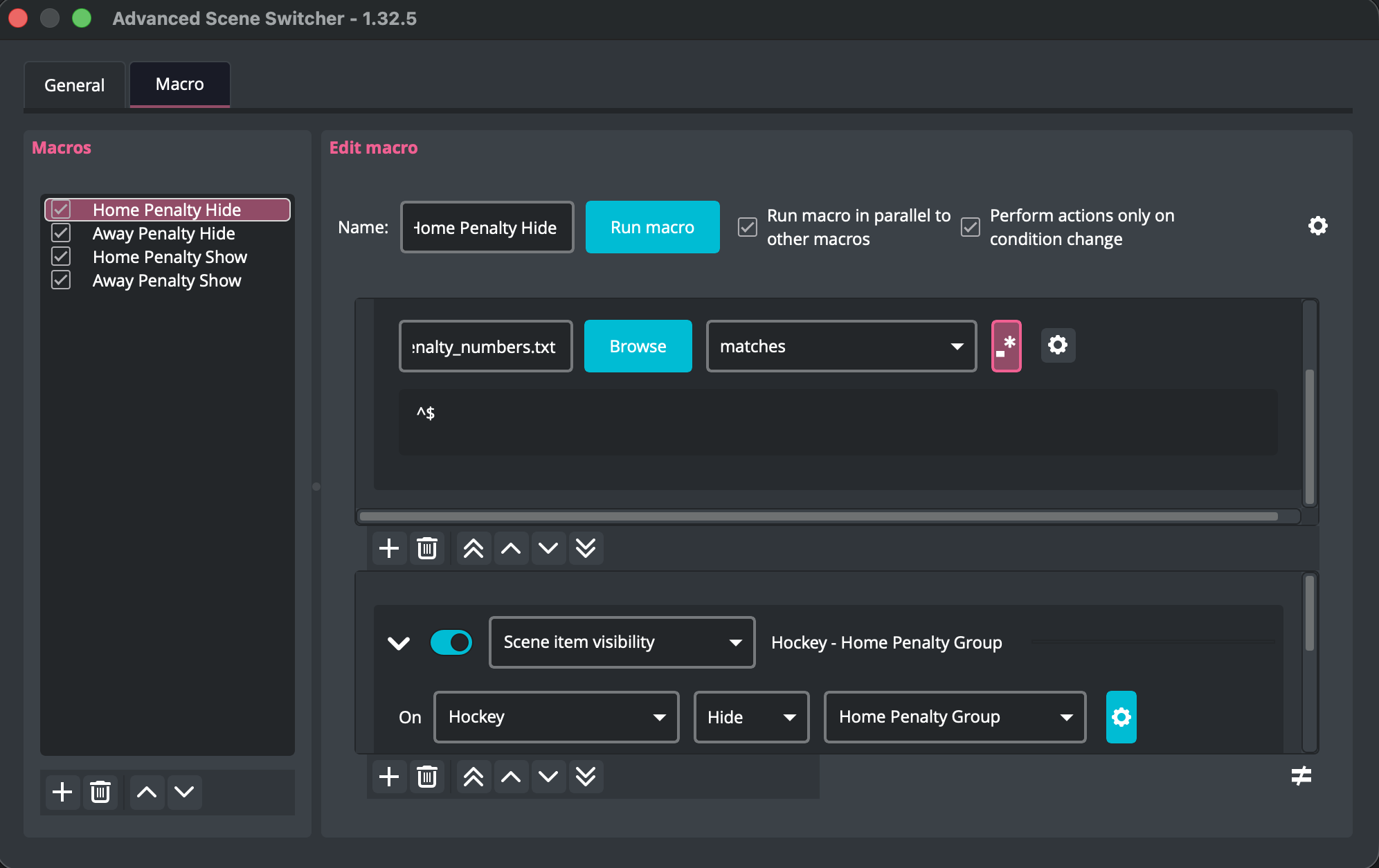
Home Penalty Hide — When home_penalty_numbers.txt
is empty, hides the Home Penalty Group and Away PP items.
Away Penalty Hide — When away_penalty_numbers.txt
is empty, hides the Away Penalty Group and Home PP items.
Home Penalty Show — When home_penalty_numbers.txt
contains penalty numbers, waits 1 second then shows the Home Penalty Group and Away PP items.
Away Penalty Show — When away_penalty_numbers.txt
contains penalty numbers, waits 1 second then shows the Away Penalty Group and Home PP items.
How to import
Import the config into Advanced Scene Switcher to get all 4 macros at once.
You will need to update the file paths and scene item names to match your setup.
Download the config file using the button below.
Open OBS and go to Tools → Advanced Scene Switcher.
Switch to the Macros tab.
Click the hamburger menu (three lines) at the bottom-left of the macro list and choose Import.
Select the downloaded JSON file and click Open.
Update the file paths in each macro condition to point to your Streamn Scoreboard
output directory (e.g., ~/scoreboard/home_penalty_numbers.txt).
Update the scene name (Hockey) and scene item names
(Home Penalty Group, Away Penalty Group,
Home PP, Away PP) to match your OBS scene setup.